Install the App
XpressAble is available as a free download on the App Store for iPhone (iOS). Search for XpressAble or use the direct App Store link, then install it like any other app.
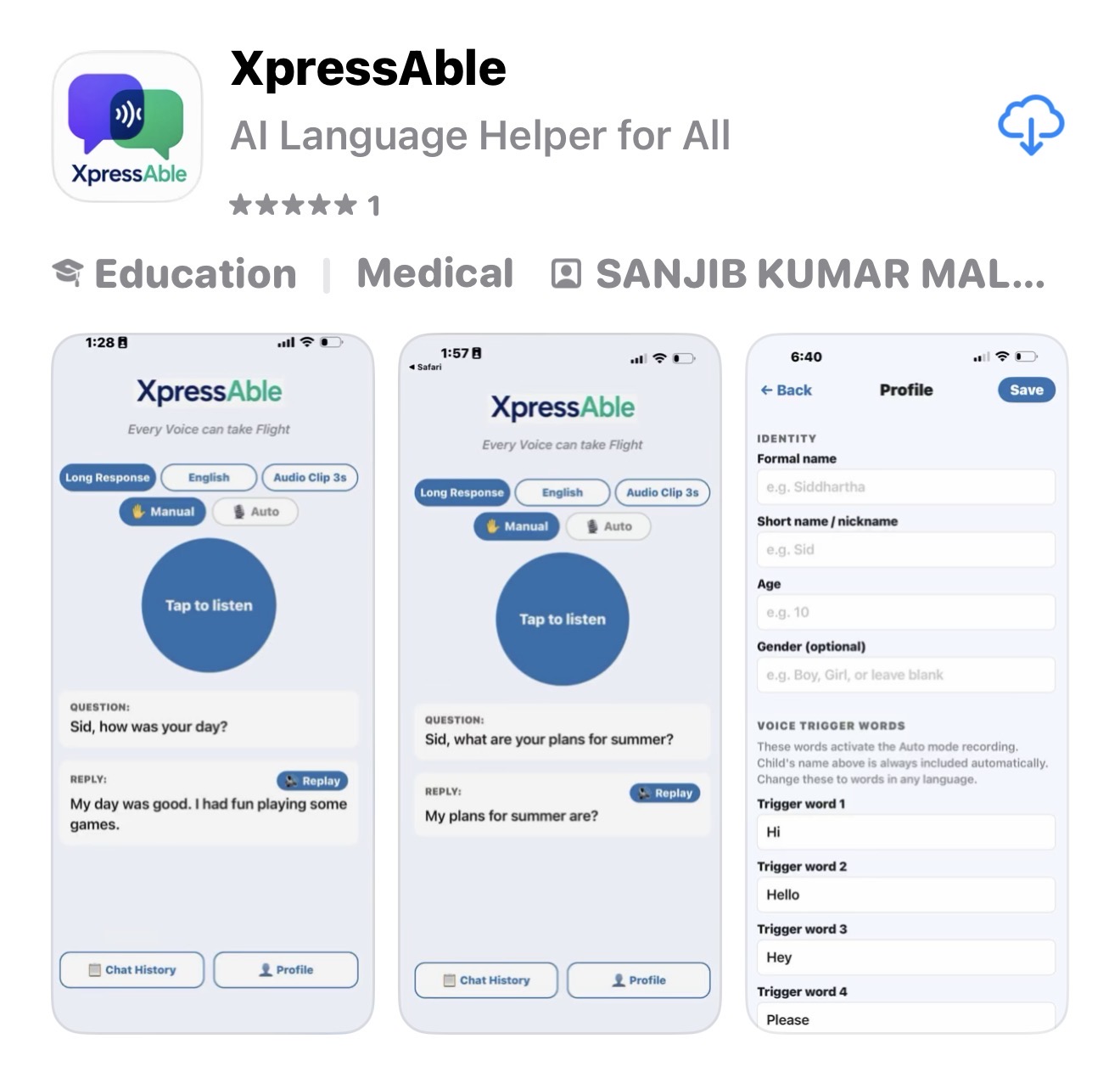
Once installed, open the app and you'll be guided into setting up your first profile — that's Step 5 below, so feel free to skip ahead and come back to headphones and microphones once you've seen the basics.
Decide Who Carries the Phone
How you set things up depends mainly on one question: will the phone stay with a parent or caregiver, or will the child or person in care carry their own phone?
Parent carries the phone
A parent or caregiver installs and sets up XpressAble on their own phone. The child simply wears the headphones — ideally a Bluetooth pair — connected back to that phone. The child doesn't need to touch the app at all; the parent manages listening and playback nearby.
Their own phone, fully connected
Once a child or person in care has their own phone, install XpressAble directly on it. Both the directional microphone and the headphones connect to their device, so they can listen, tap, and respond independently, wherever they are.
Neither path is "better" — they're built for different stages of independence. Many families start on the left and move to the right over time.
Choose the Right Headphones
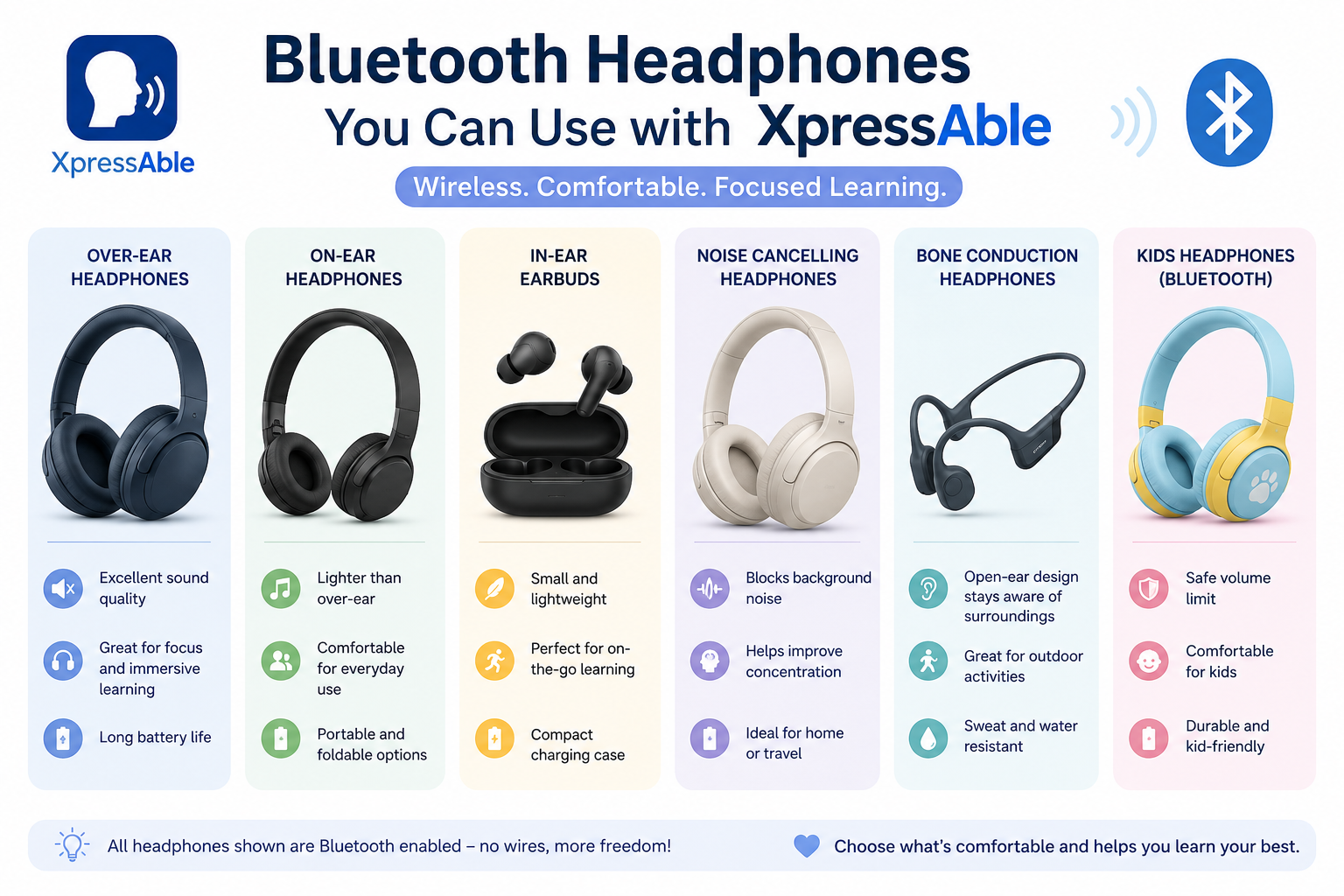
We prefer Bluetooth headphones over wired ones — no cable to catch on furniture or pull loose mid-conversation, and they work whether the phone is in a parent's pocket or the child's own hands.
The pair we've tested and used ourselves is the Shokz OpenRun, a bone-conduction design that sits just outside the ear canal. We like it because the child hears the suggested response clearly while remaining fully aware of the room around them — nothing is blocked from either ear.
Choose a Directional Microphone
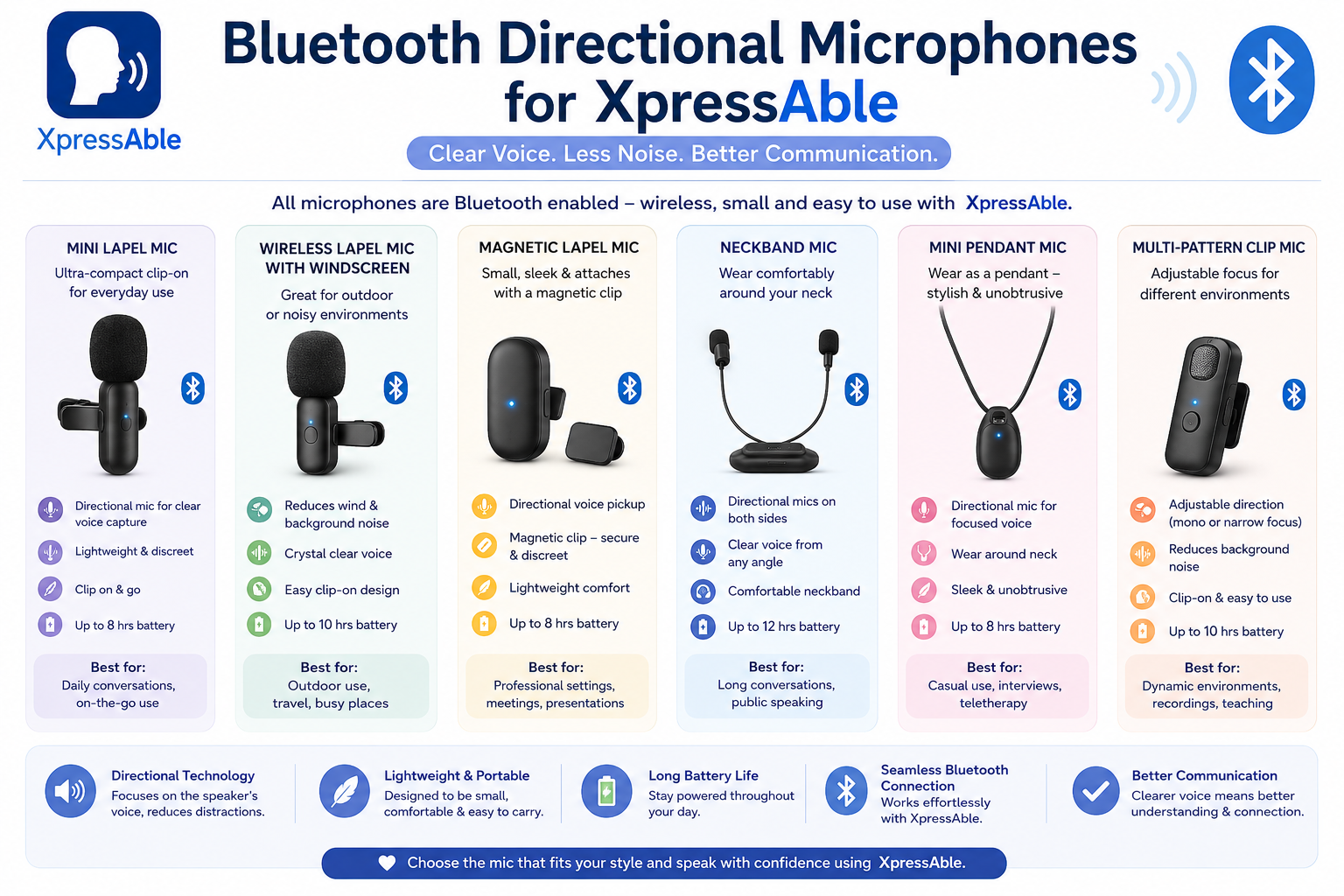
A good directional microphone matters more than people expect — especially if you plan to use Auto mode (see Step 6). Auto mode listens continuously in the background and starts recording the moment it hears a trigger word, so it needs to reliably tell the difference between a question actually directed at your child and background chatter, TV noise, or someone talking across the room.
A directional (rather than omnidirectional) microphone focuses on sound coming from directly in front of it, which meaningfully improves how accurately XpressAble recognizes when someone is actually speaking to your child versus general noise nearby.
Build a Detailed Profile
This is the step that determines how good the AI's responses actually feel. Before your first real conversation, open the Profile screen and fill in as much as you can:
- Name, age, and preferred language
- Interests and favorite things
- Special skills or things they're proud of
- Topics to avoid
- Communication style — short phrases, full sentences, single words, emerging verbal
- Custom trigger words, if you plan to use Auto mode
The AI reads this profile every time it generates a response. A thin profile gets a generic, best-guess reply; a detailed one gets a response that actually sounds like your child — using their interests, their tone, and language they'd really reach for. This information is stored securely on your device only and is never shared or transmitted.
Choose Manual or Auto Mode
Manual Mode
Tap the main button once to start listening, tap again to stop early. You're in full control of exactly when XpressAble records.
Auto Mode
Fully hands-free. XpressAble listens quietly in the background and starts recording the moment it hears your child's name or a custom trigger word — no tapping needed. This is where a good directional microphone (Step 4) really pays off.
The main button changes colour so you always know what's happening:
Understand the AI — and Help It Understand You
XpressAble's AI is genuinely good, but it isn't perfect, and it's helpful to know how it can fall short so you can work around it in the moment:
- It can mishear a question — background noise, overlapping voices, or a very short question can occasionally trip up transcription.
- Very short phrases are harder to catch accurately than fuller sentences — the more words the AI has to work with, the more reliably it identifies what's actually being asked.
If a response doesn't quite match the question that was asked, don't worry — a couple of small adjustments usually fix it:
- Repeat the question in different words. If "What did you do today?" doesn't land well, try "Tell me about your day."
- Speak a little slower and a little more clearly.
- Use a longer, fuller sentence rather than a very short phrase — this gives the AI more to work with.
Use Replay, and Review Chat History
If your child doesn't respond the first time — they missed it, got distracted, or just need to hear it again — tap 🔊 Replay. It speaks the same response again through their headphones without needing to re-record the question.
Afterwards, check Chat History to see the full exchange. Rate responses and suggest better alternatives when something doesn't sound quite right — this feedback loop is part of what helps XpressAble get better at responding for your child specifically over time.